To access the file operations (save, open & import) click on the settings

button.
This documents functionality that is gradually being adding to mathies apps. Not all file operations are available to all tools.
These instructions are for the mathies apps on an iPad or iPhone, or on an Android device where the app was installed before it was removed from Google Play (see
Accessing mathies Tools).
File Types
Files saved by mathies tools are actually in the
XML format. They use a custom extension (like .relrods) so that they can be associated with the correct application.
You can also save the files with either the .xml or .txt extension and be able to open them with the tool later on.
The xml and txt file types are useful if you want to open the file in another application, like a text editor, or if you are putting the files on a web server.
Operations:
- Save
- Open
- Open from Web
- Import
- Import from Web
- Window Size Warning
- Using Google Drive
- Transfering Files from a Mobile Device to a Computer
- Accessing Sample Files
 Save
The Save File operation is accessed using the Save Button in the Settings dialog or by using the keyboard shortcut SPACE+S.
The saved file will include:
- all tool specific objects
- images, when available
- the undo/redo history steps, when available
- the final state of any annotation
Saving in the App
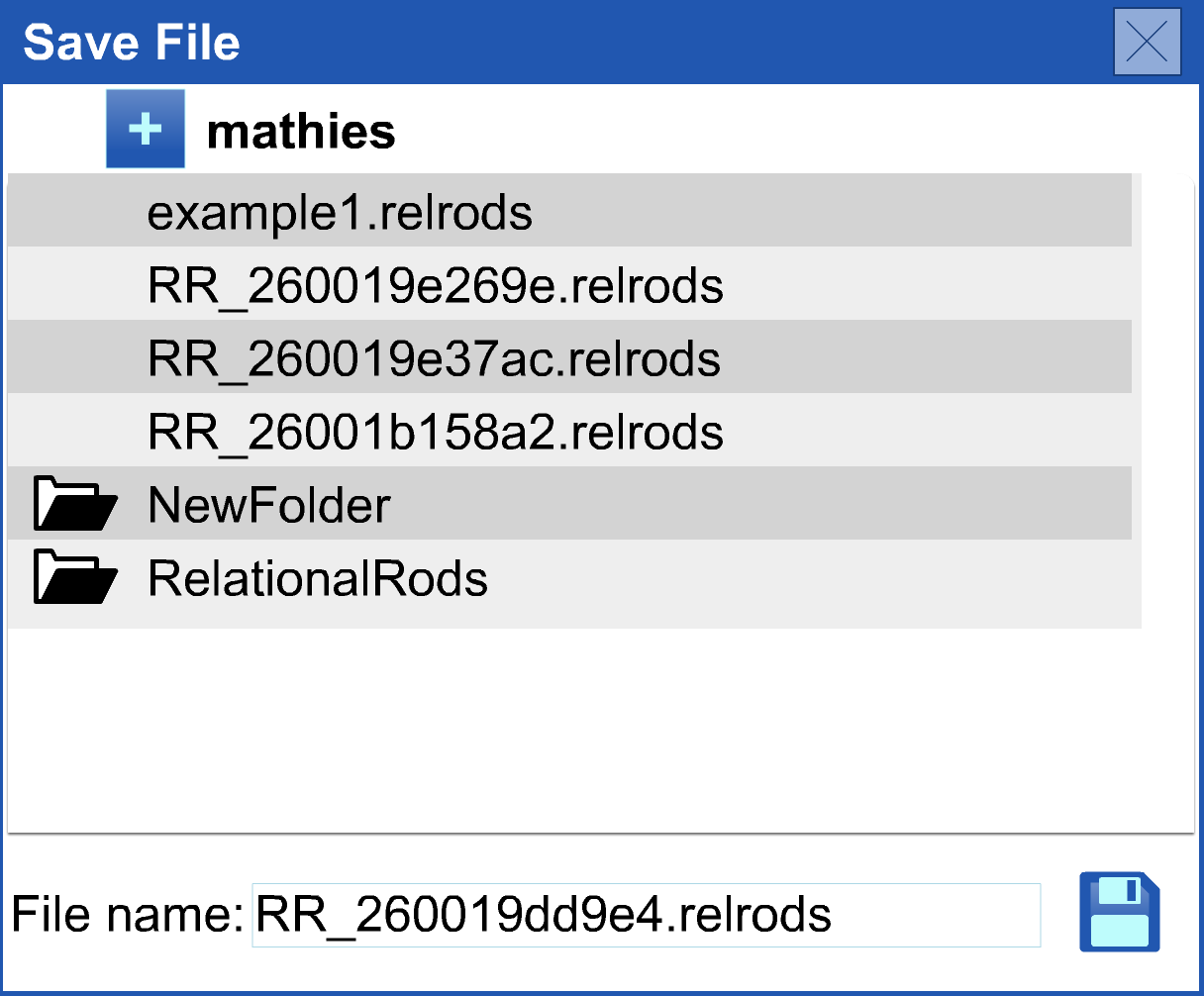
Apps use a dedicated Documents directory. Files will be saved by default to the mathies subfolder of that directory.
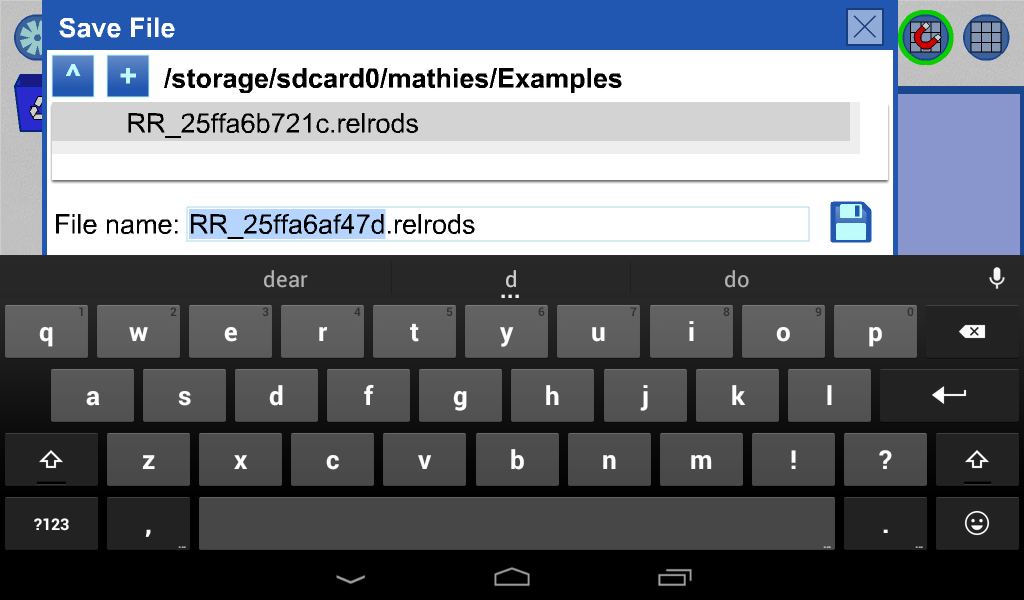
The suggested file name is displayed in the input text box at the bottom of the dialog. It is based on the date and time of saving and should be unique.
You can also click on a file to copy its name to the input box.
You can, of course, also edit the textbox to supply your own name.
It is recommended that you do not change the file type (e.g., .relrods for Relational Rods +) since the
Open operation gives preference to the expected extension (and .txt and .xml).
Double-click on a folder to browse its contents.
Press the Save Icon to save the file with the file name displayed. If you supply a valid name it will be used.
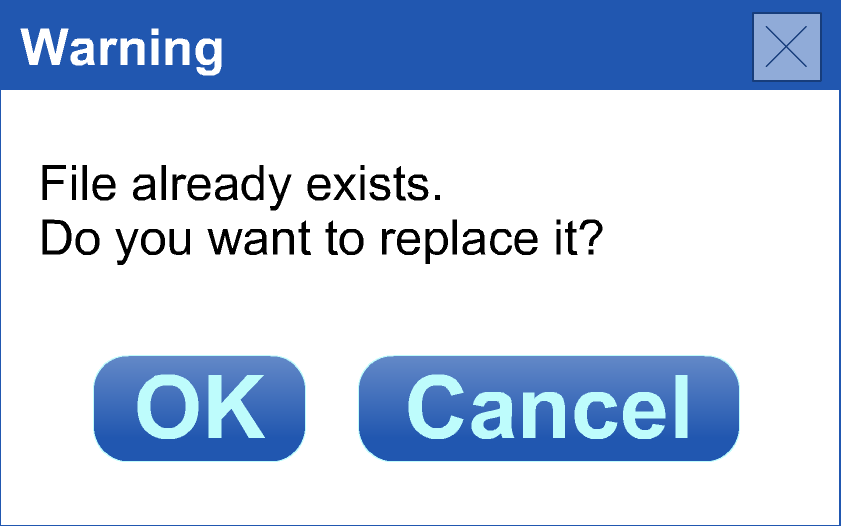
If the file already exists, you will be presented with a Warning Dialog, which allows you to continue the save operation or cancel it.
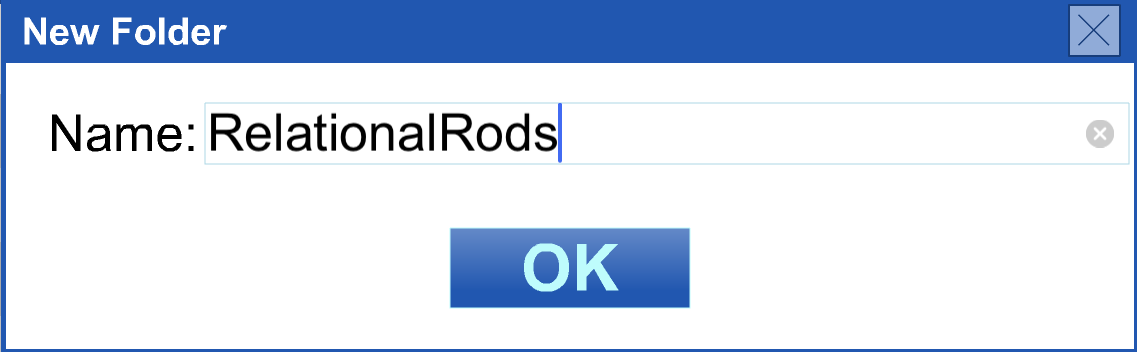
Press "+" to add a subfolder.
Press "^" at the top left of the dialog, when available, to navigate up to the parent folder.
Saving in a Tool with Undo/Redo
Typically, you would think to press Save at the end of a bunch of work. However, students are often encouraged to save a file so that they can review the entire sequence of their work with an educator or peer.
If a file is saved at the end of the steps, it can be opened, undo can be pressed until it is at the beginning of the steps and redo can be pressed to review each step.
Alternatively, undo can be pressed to get to the beginning prior to saving. Then when the file is opened, redo can be pressed right away to move through the steps from start to finish.
In fact, you can save the file at any point in the undo/redo sequence.
When a file is opened, it is restored to the step at which it was saved. The undo/redo buttons are active and work just as they would have in the original workspace.
Example
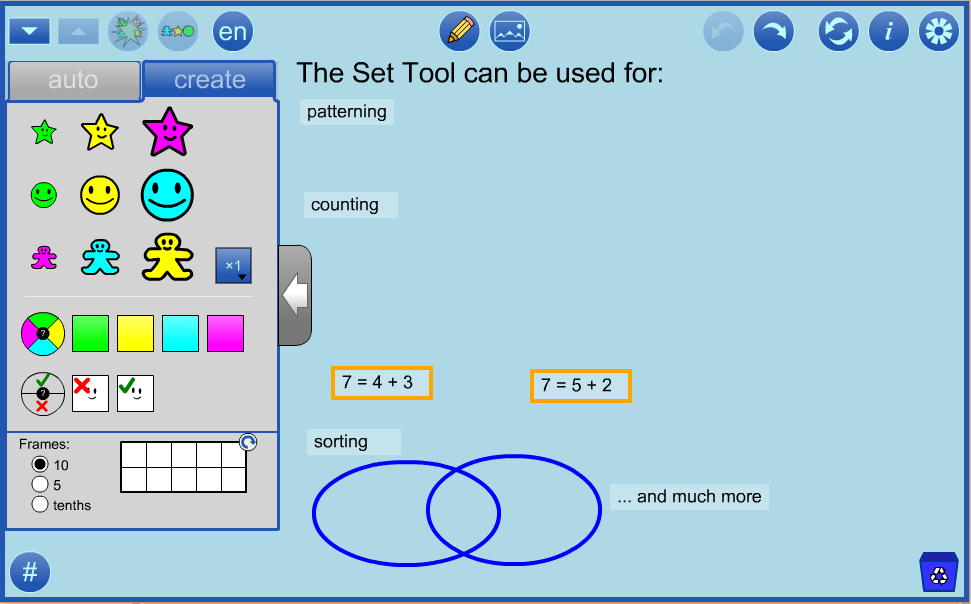
The first supplied example for the Set Tool (mathies.oame.on.ca/files/examples/ST_Ex1.xml), saved at the beginning of the work, is supplied as an alternate example below.
When the file is opened, there is nothing on the workspace (other than the annotation), the undo button is inactive, but the redo button can be used to review all the steps from the beginning.
Notice that when you open the file, all the annotation appears on the screen. This is because only the final state of the annotation is saved and loaded and currently there is no undo/redo for annotation.
top
 Open
The Open File operation is accessed using the Open File Button in Settings, using the keyboard shortcut SPACE+O, and from an icon on some tool's opening screens.
The open operation allows you to open a file which is saved on the device you are working on.
When you open a mathies file into the
same mathies tool where it was created you will :
- see all of the tool specific objects
- see any annotation that was saved.
- be able to press undo/redo to see the steps that were used to create the file, when available
When you open a mathies file into a
different mathies tool than where it was created you will see only the annotation that was saved.
In either case, you will be able to manipulate the objects in any way you like and continue working in the tool.
Opening a file resets the tool prior to loading the file.
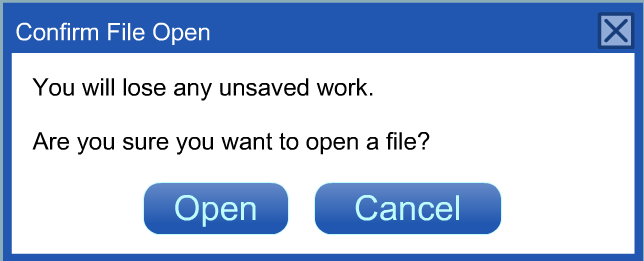
If you have done any work with the tool prior to opening a file, a warning dialog appears as a reminder of this fact. Press
Open to proceed or
Cancel to go back to save any work that matters.
Opening in the App
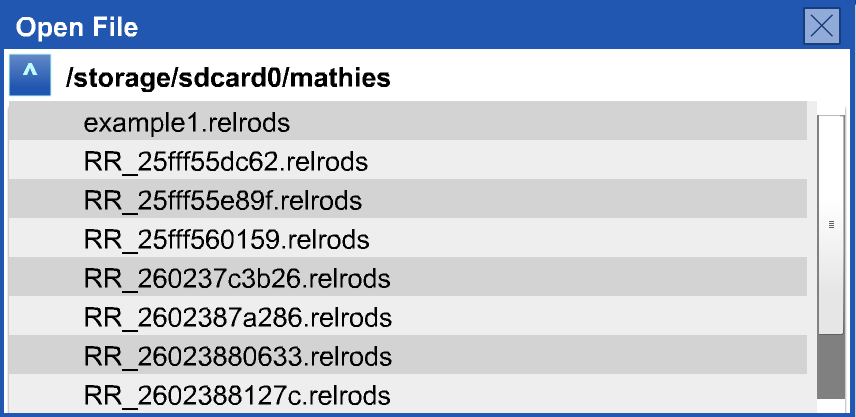
On mobile devices, a custom dialog appears which displays the files and folders available. The name of the current directory is displayed in bold face at the top.
Click on a file to open it in the tool.
Double-click on a folder to open it for viewing.
Use the scroll bar to view more files and folders.
Press "^" at the top left of the dialog, when available, to navigate up to the parent folder.
Apple has gone to a lot of effort to have their devices not act like other storage devices. However, each app does have some storage for its documents.
The custom dialog will display the files available in the mathies subfolder of this directory. These files are at risk of being deleted when a new version of the app is installed (they should be fine if the app is updated).
See the
section below for information about how to transfer files from a device to a computer for safekeeping and distribution. Note: Saving files in a subfolder may make them harder to transfer using iTunes.
top
 Open from Web
The Open File from Web operation is accessed using the www Button in Settings or using the keyboard shortcut SPACE+SHIFT+O
Open from Web allows you to open a file from a URL as opposed to from your device. Otherwise, the functionality behaves the same as for
open.
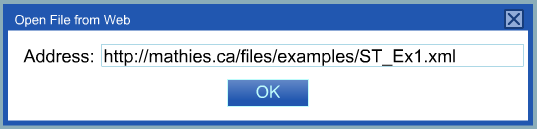
You will be prompted for a valid web address. Press OK once you have entered the address completely.
Like many other mathies dialog boxes, you can press ENTER instead of clicking OK (this works on a mobile soft keyboard as well).
Each tool includes two sample files (Ex1 and Ex2) which highlight various aspects of the tool.
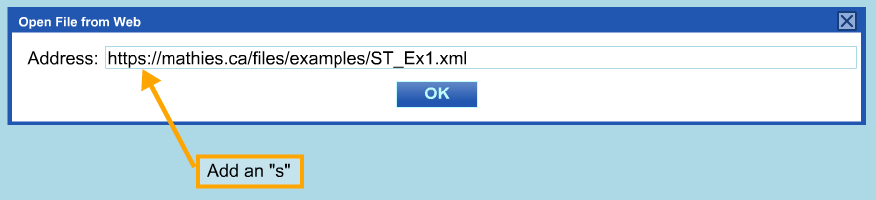
Note: In the spring of 2018, mathies.ca was changed to a secure site. This means that until a tool is updated, the link to the sample files may need to be edited so that it starts with "
https://", as below, in order not to get a Security Error dialog.
Support pages for each tool contain a sample files section which includes other saved file examples. ( e.g.
Notepad Sample Files)
In order for this
Open from Web operation to be successful,
- "http://" or "https://" must be used in the address
- the file must be on the server
- the filetype must be supported on the server - .txt and .xml are pretty good bets, the mathies specific extensions less so
- the file must be in a valid format created by the mathies tool
- OK must be pressed
Advanced:
Web pages generally know how to serve up .xml files. The XML files used by mathies tools have custom extensions, like .moneytool and .relrods.
The server admin would need to set up MIME types for these custom extensions in order for the loading to work.
You can use a text editor to view these saved files, if they are not compressed, and tweak them if you are brave.
top
 Import
The Import File operation is accessed using the Import File Button in Settings or using the keyboard shortcut SPACE+I.
Importing a mathies file results in the content of the imported file being added to the stage alongside any content that is already in place.
Consider saving your work before importing for safekeeping.
If the existing work and the imported file contain objects at different sizes every attempt is made to maintain the current state of the tool which means that imported objects may be adjusted to fit.
The import operation includes only the final state of tool specific objects and annotation. Pressing undo removes all the imported tool objects in one step.
At this time, it is not possible to distinguish imported annotation from annotation created prior to import so the user will have to remove any unwanted annotation objects themselves.
The import operation steps are the same as for the Open operation described above.
top
 Import from Web
The Import from Web File operation is accessed using the www Import Button in Settings or using the keyboard shortcut SPACE+SHIFT+I.
This operation allows you to import files from a specified URL as described above.
Consider saving your work before importing for safekeeping.
top
Window Size Warning
Sometimes a file might have been saved in one window size and you are trying to open or import it in a smaller window size.
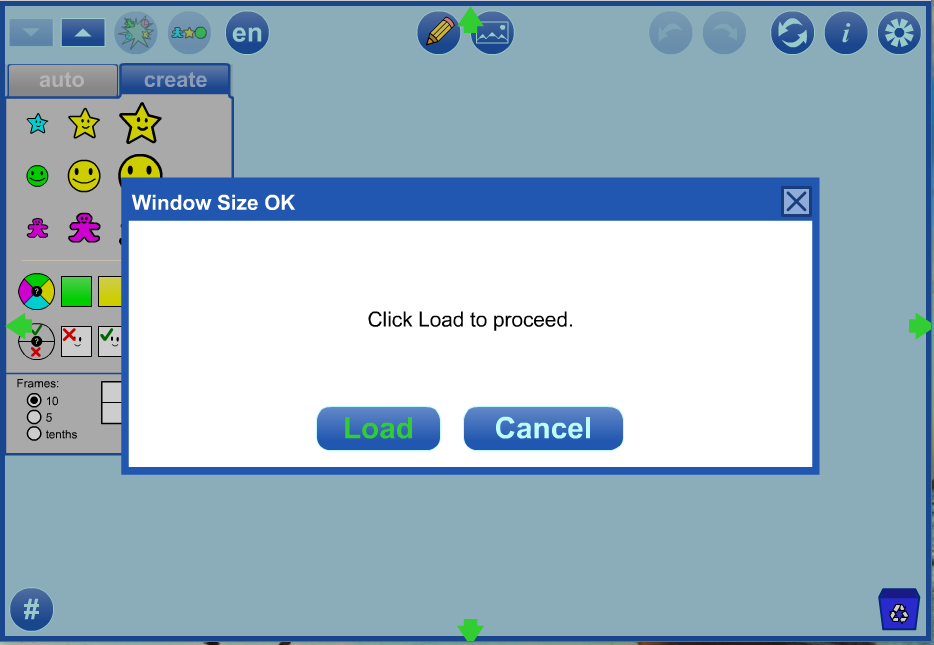
A warning message appears when this happens and red arrows appear to indicate which dimensions are awry.
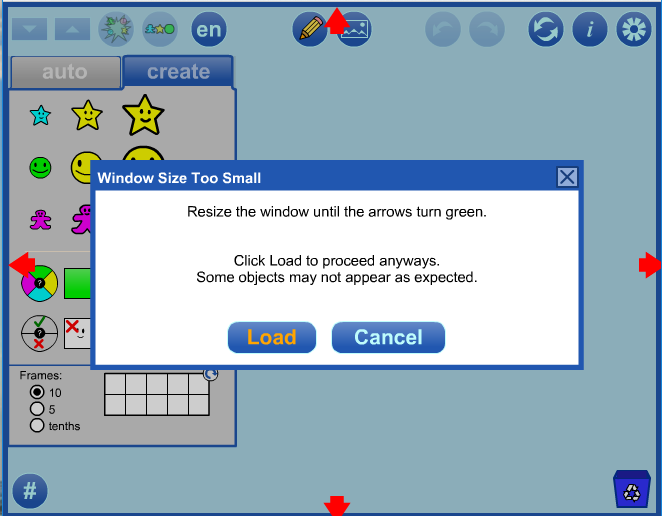
If you press Load prior to adjusting the window, then objects will be scaled to fit the smaller window as best they can.
Annotation and objects might not align properly. In extreme cases, some items may be off the stage.
If you choose to resize your window until the arrows turn green, then everything should load just fine.
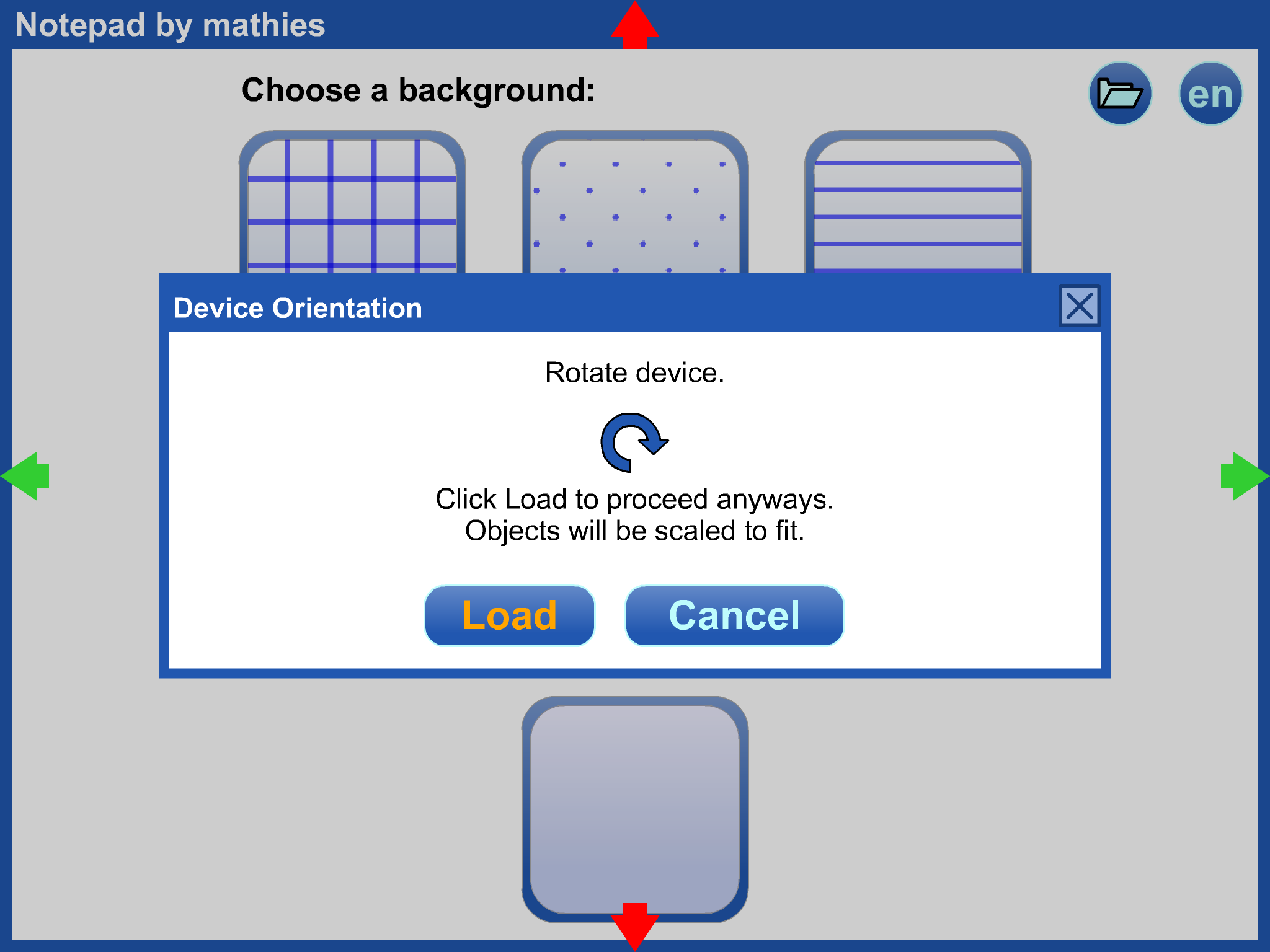
On mobile devices, a message might appear suggesting that you rotate the device prior to loading.
Since some mathies tools are locked into a landscape orientation, this will not always be possible.
Helpful Hint
When opening a file what was saved on a different device or at a different screen size, you may get better results if you increase or decrease the size of the tool's objects after loading the file, using the sizing arrows or the settings.
top
Google Drive
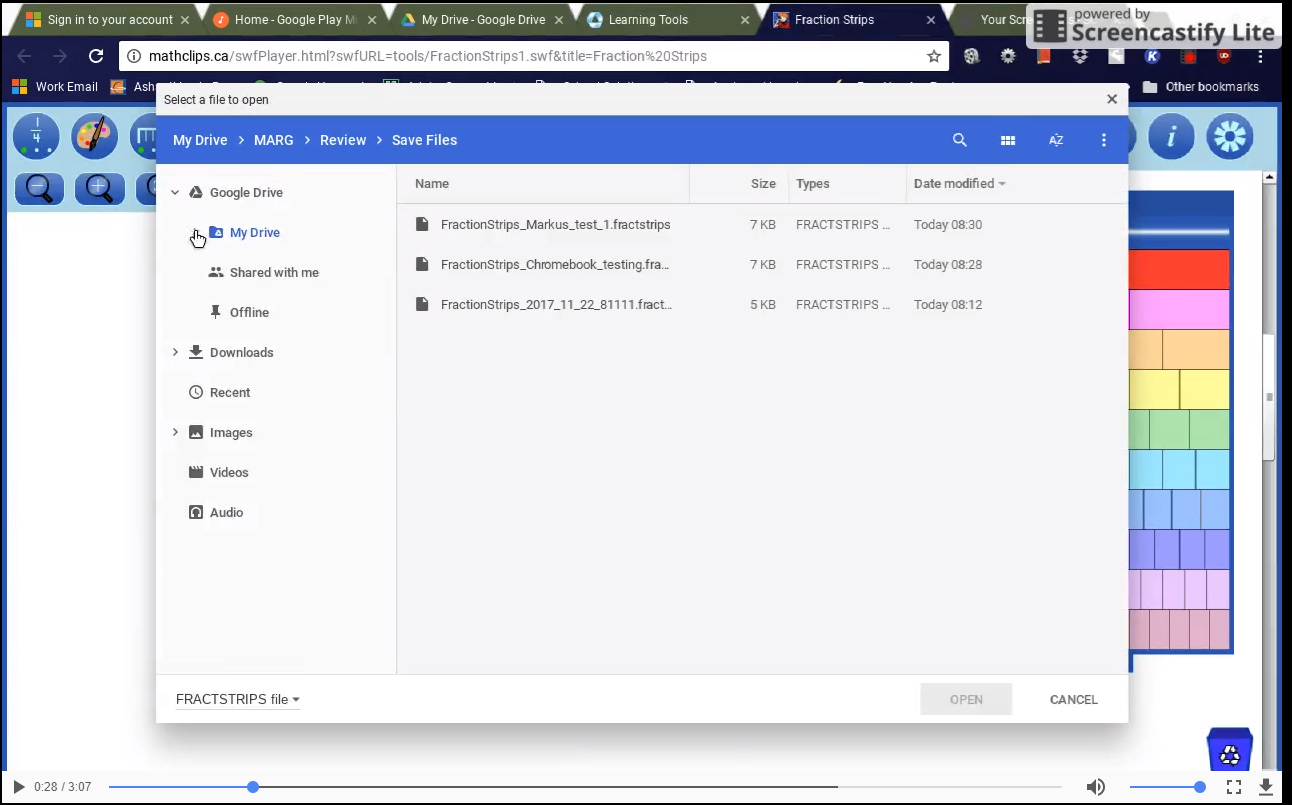
mathies files can be saved and loaded with Google Drive.
The video below describes the process using a Chromebook, although the procedure is similar on a Windows and Mac computer with Drive installed
(see
https://www.google.ca/drive/download/).
Click the image below to play the video.
 top
Transfering Files from a Mobile Device to a Computer
Android App
Depending on the security settings on your device, you may be able to connect your device to a computer and transfer files back and forth.
Check for documentation related to connecting your device in a file transfer friendly mode.
iOS App (iPad/iPhone)
Files App (iOS 11+)
The video below explains how to use the Files App to transfer files between a mathies app's folder and other locations, such as iCloud Drive, Google Drive, OneDrive and Dropbox.
iTunes File Sharing
This method requires a computer connected to your iOS device.
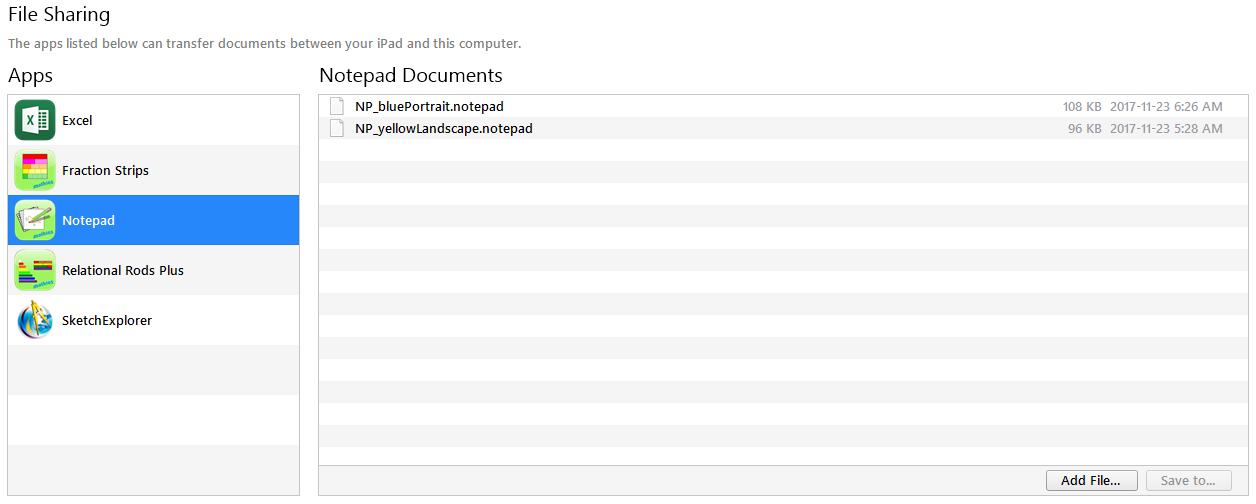
Some mathies apps have File Sharing enabled, and so you can:
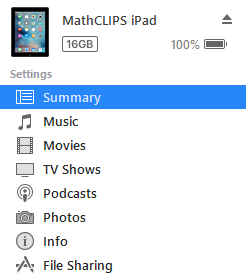
- Connect your device. Open iTunes if it doesn't happen automatically.
- Click on the image of the device - the fourth button at the top left.

- Click on File Sharing at the bottom of the list at the left.
- Use the Add File and Save to buttons at the bottom right to transfer files.
For more information on File Sharing, see the
Apple Support page
top
Accessing Sample Files
Two sample files (Ex1 and Ex2), which highlight various aspects of the tool, have been created for each tool.
These files can be opened using the Open from Web button
provided the device is connected to the internet and "
https://" is used in the address.
(see above).
These files can also be accessed offline if you have previously installed a mathies application to a mobile device.
- iOS or Android App:
- Open the desired mathies app.
- Click Open
- Double click to open the Examples folder
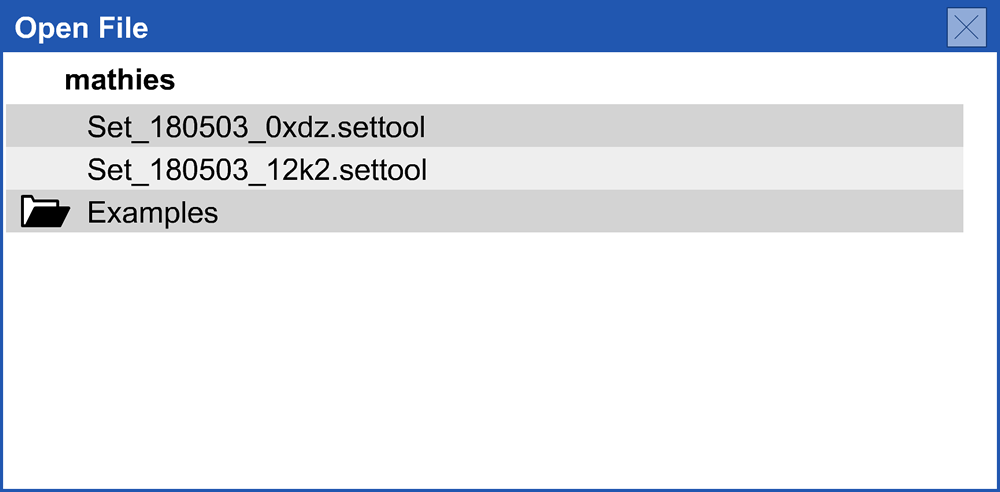
- Select the desired file
- Using Google Drive
- Add the mathies sample files Google drive folder to "My Drive" which allows convenient access on all devices. Note this folder contains all the example files from the support pages as well.
top

 Algebra Tiles
 Colour Tiles
 Fraction Strips
 Money
 Notepad
 Number Chart
 Pattern Blocks+
 Rekenrek
 Relational Rods+
 Set Tool