|
|
||||
 |
|
 to communicate thinking.
 into the tool.
 and opened
 .
A saved file can be shared with peers or submitted to a teacher. The file will contain all solution steps from start to finish.
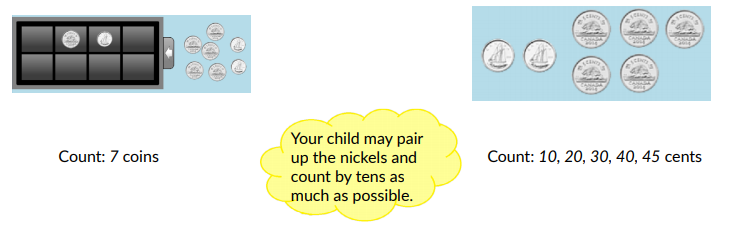
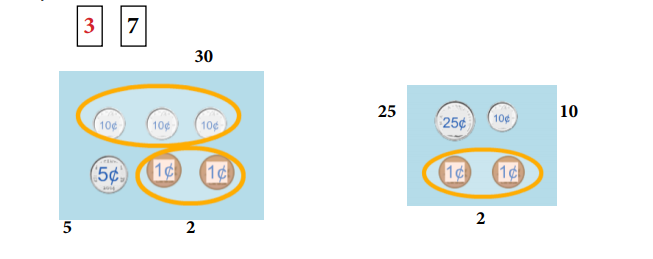
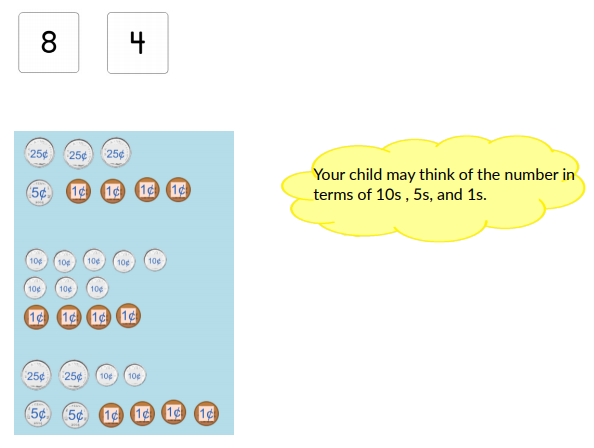
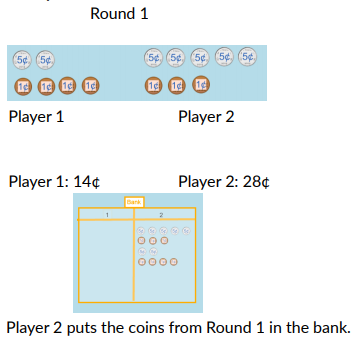
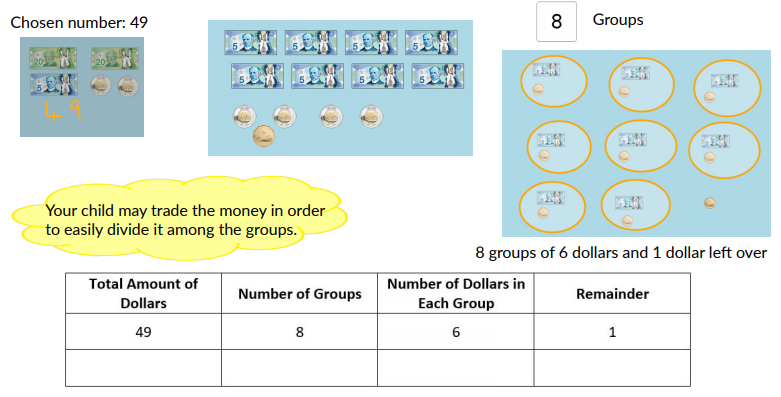
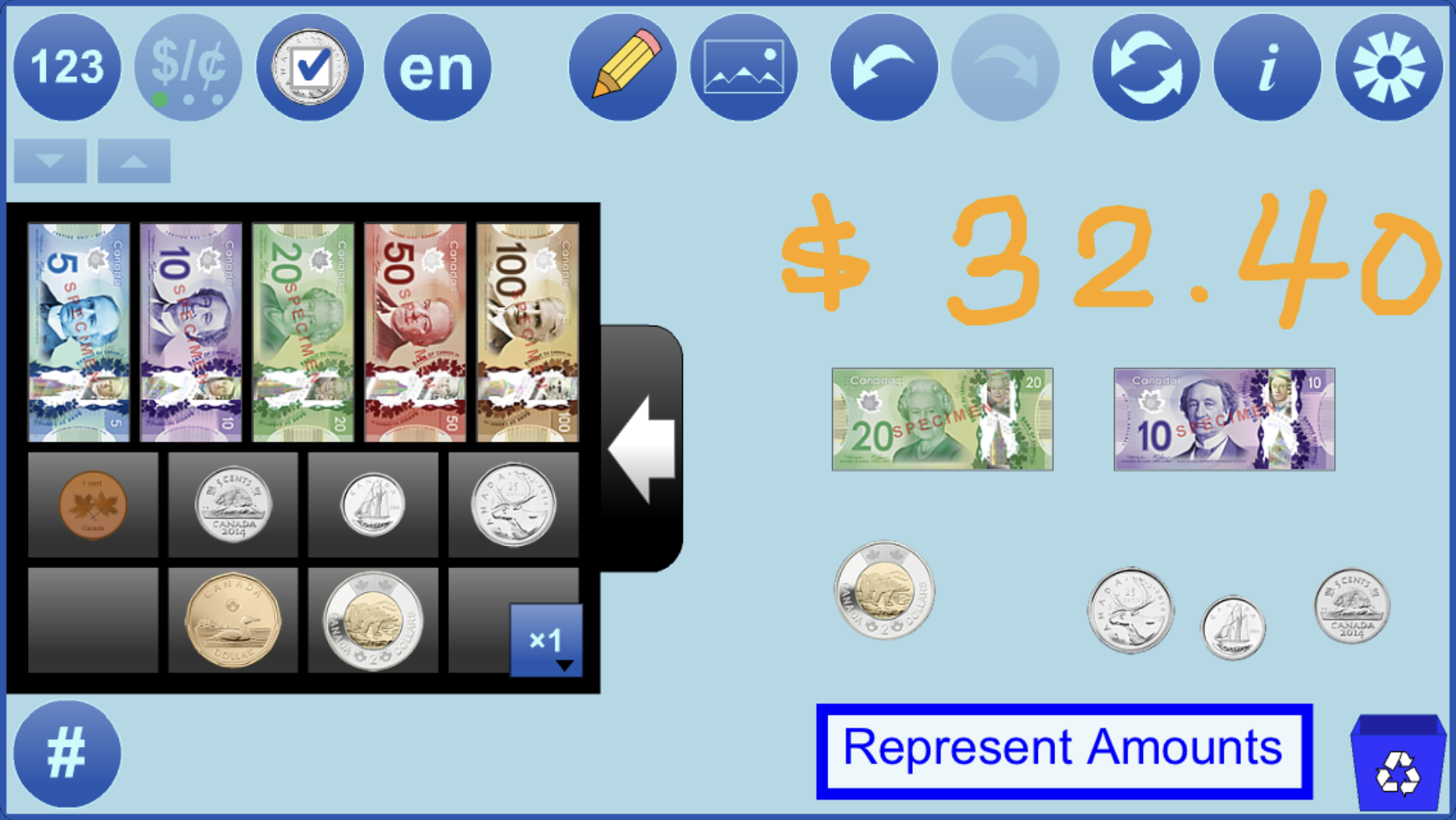
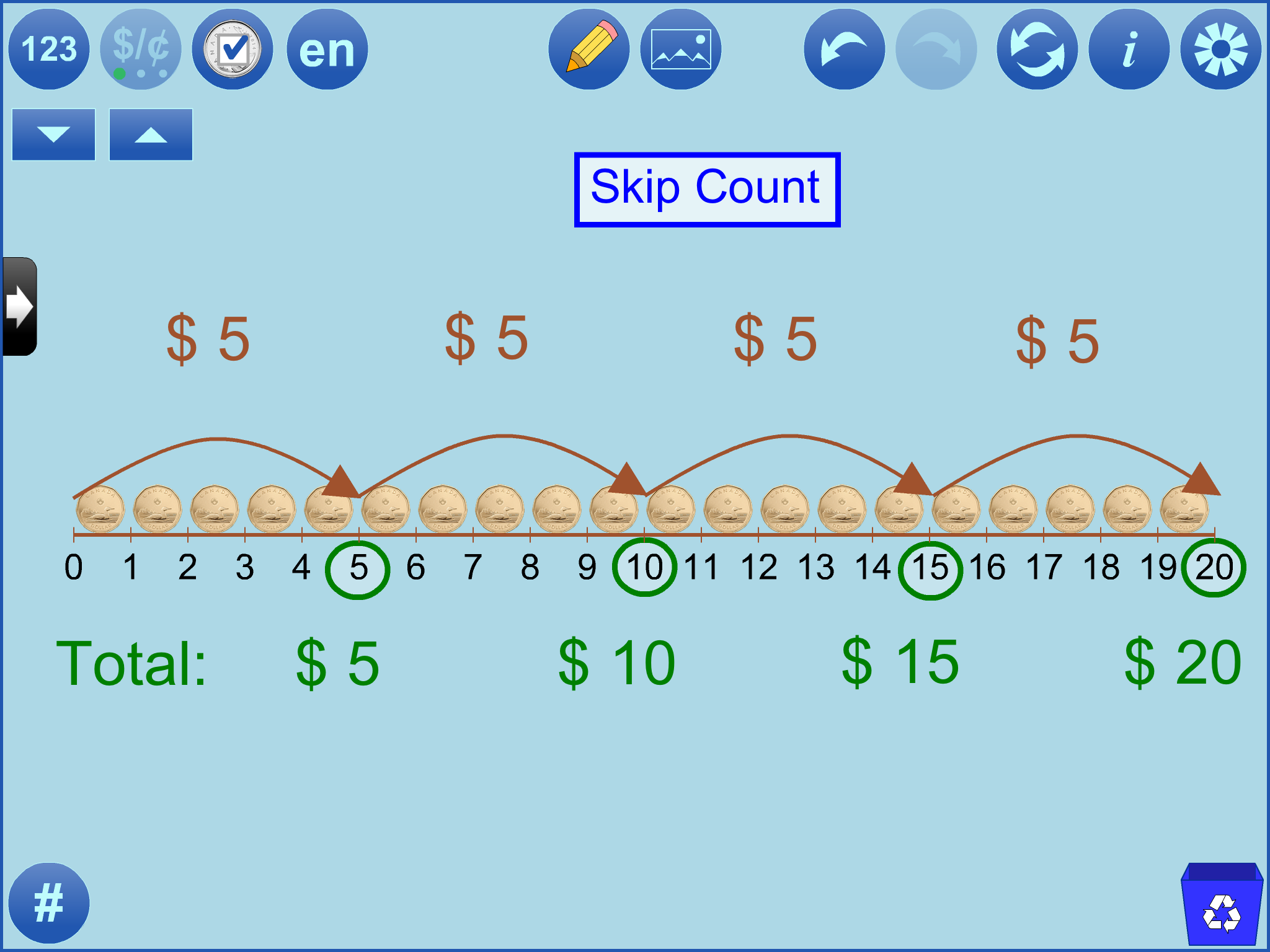
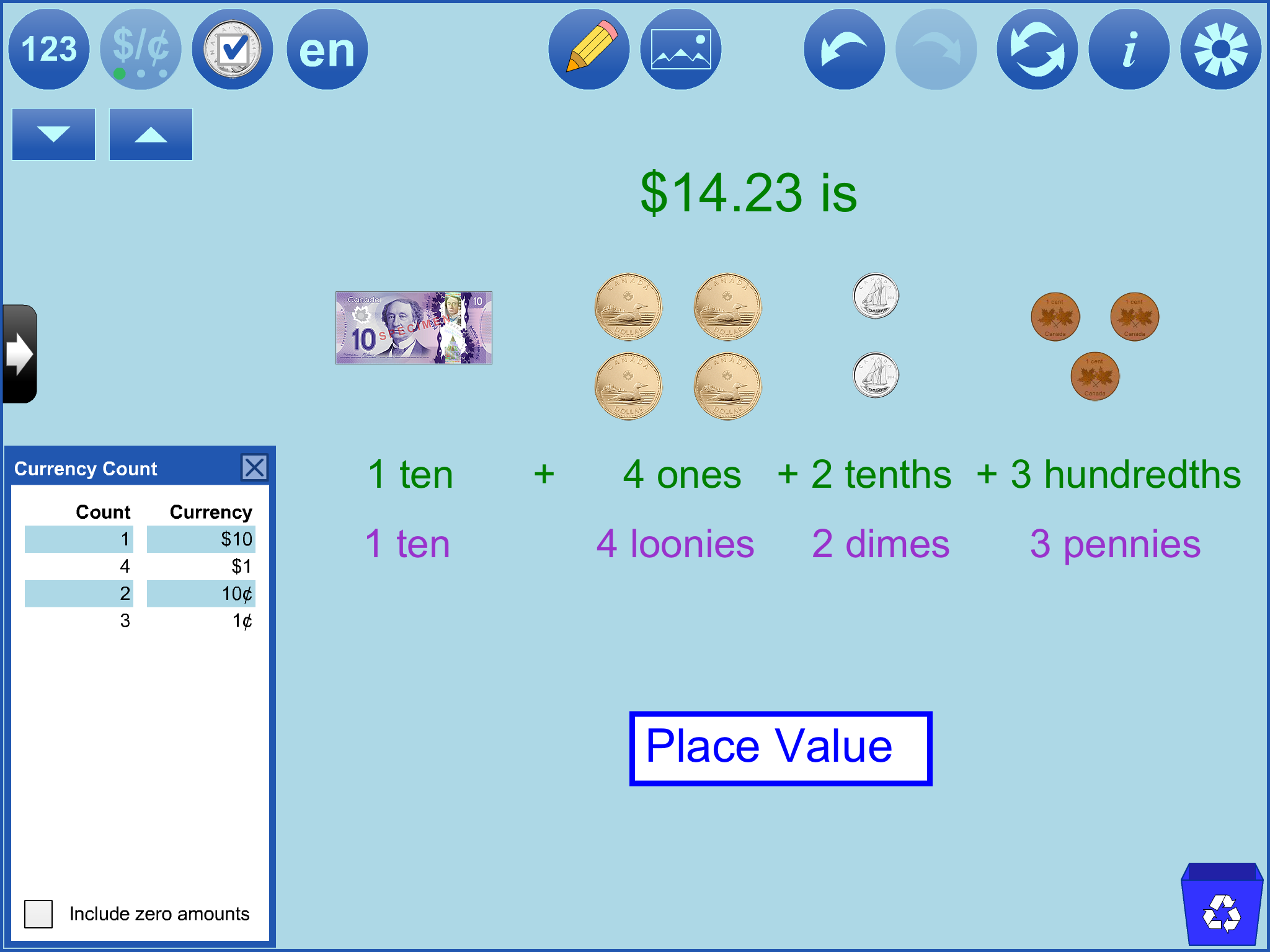
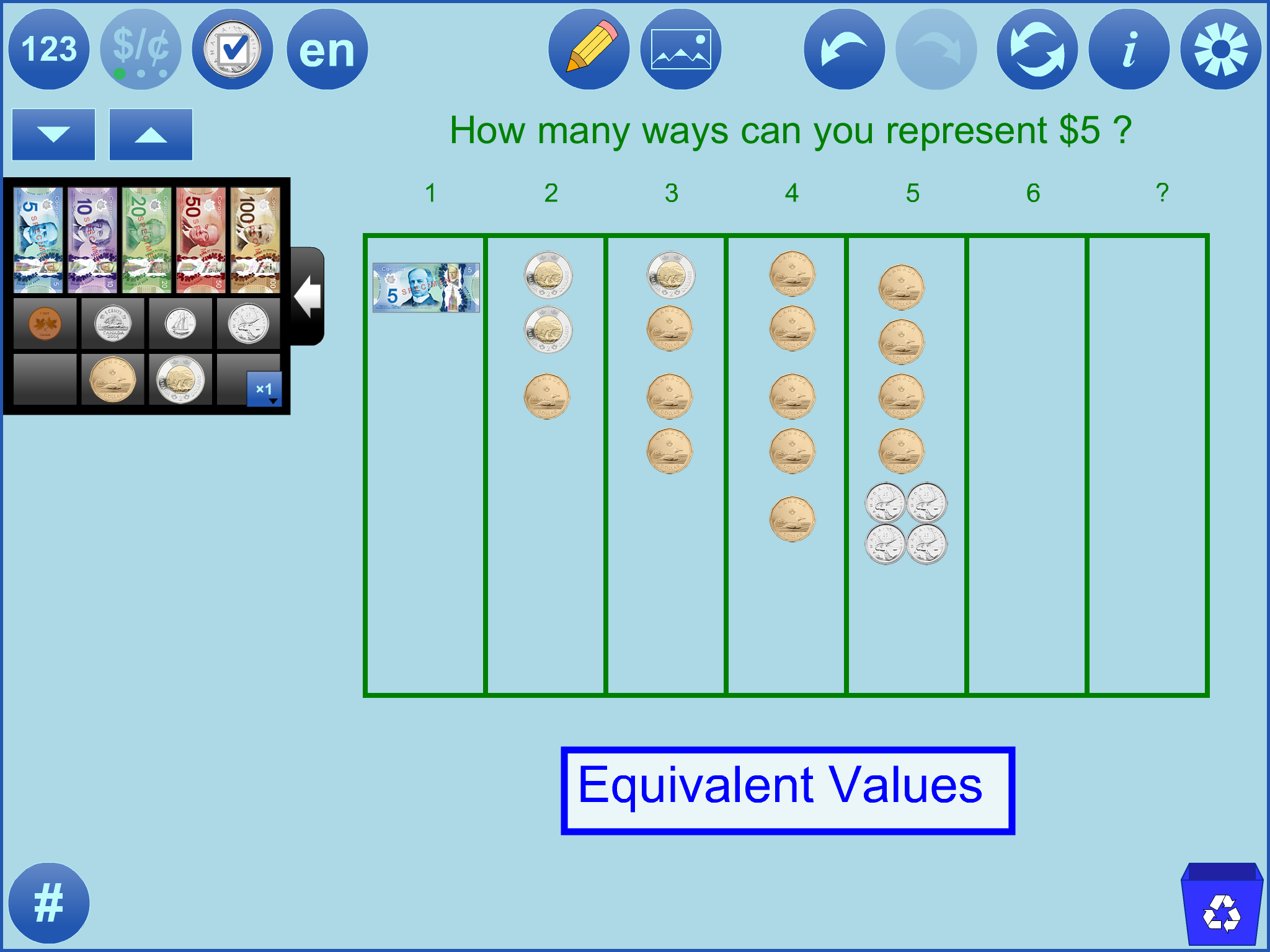
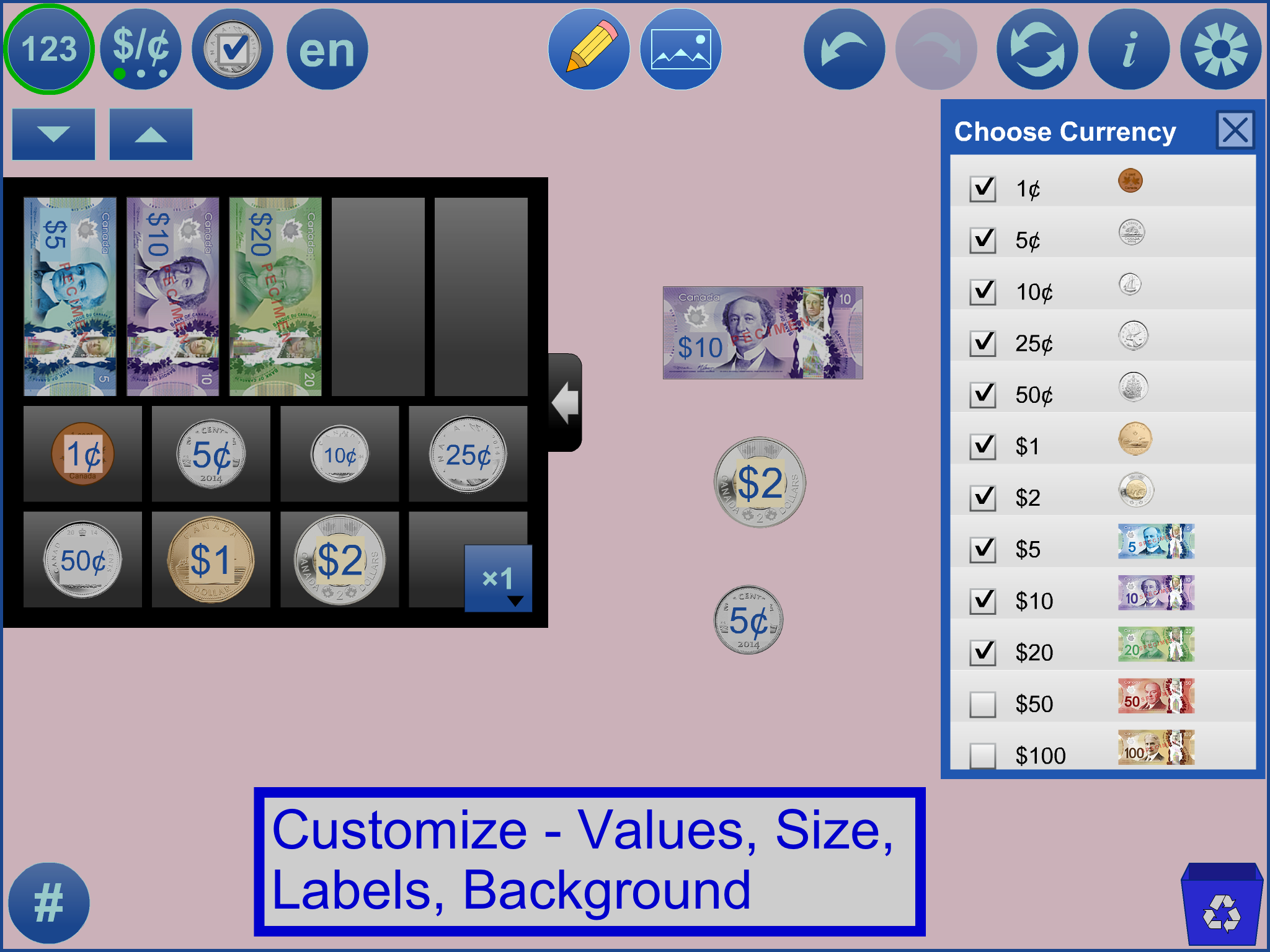
 activities use Money including:
|
| Activity 3 |
|
| Activity 2 |
|
| Activity 5 |
|
| Activity 3 |
|
| Activity 3 |
 |
||
 |
||
 |
||
 |
||
 |
||
|
||
|
||
|
 in the Settings dialog and supply the URL, or
 in the tool, or
Sample |
URLType or copy into Open WWW text box, or save locally by right-clicking or hard-pressing |
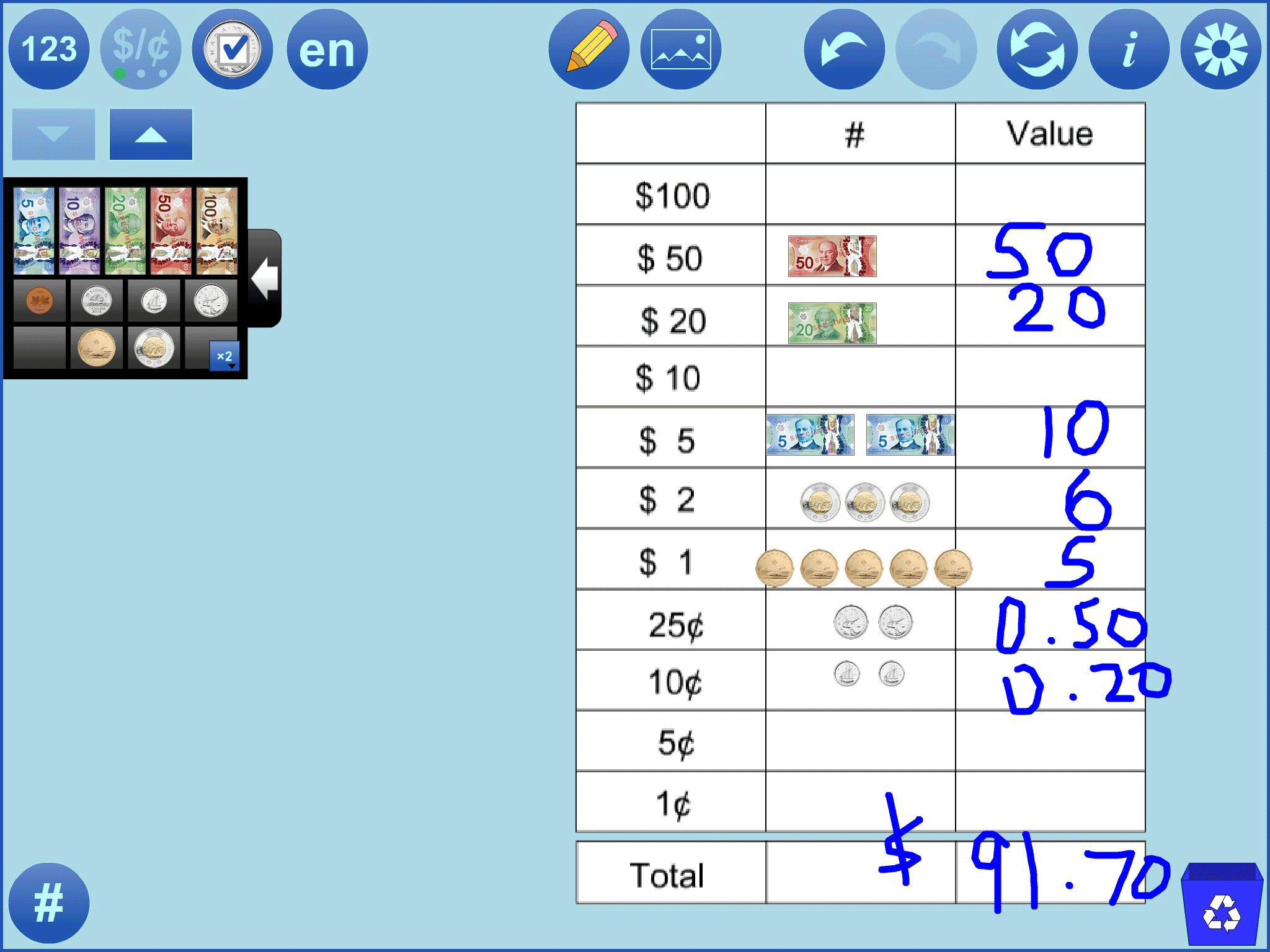
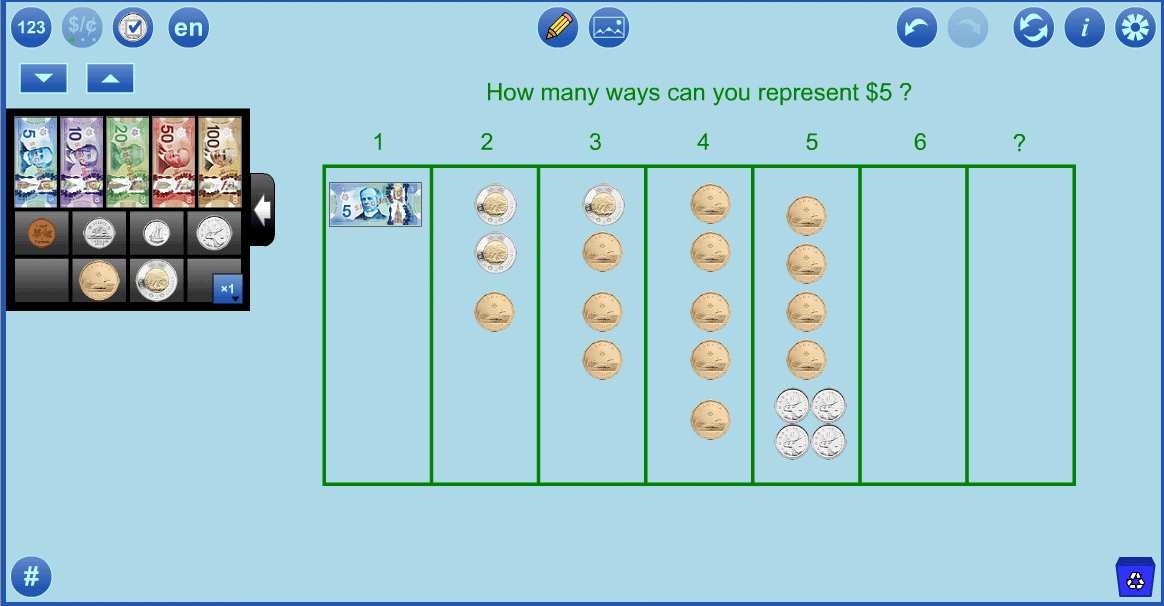
Represent Equivalent Values
|
https://mathies.oame.on.ca/files/examples/MT_Ex1.xml |
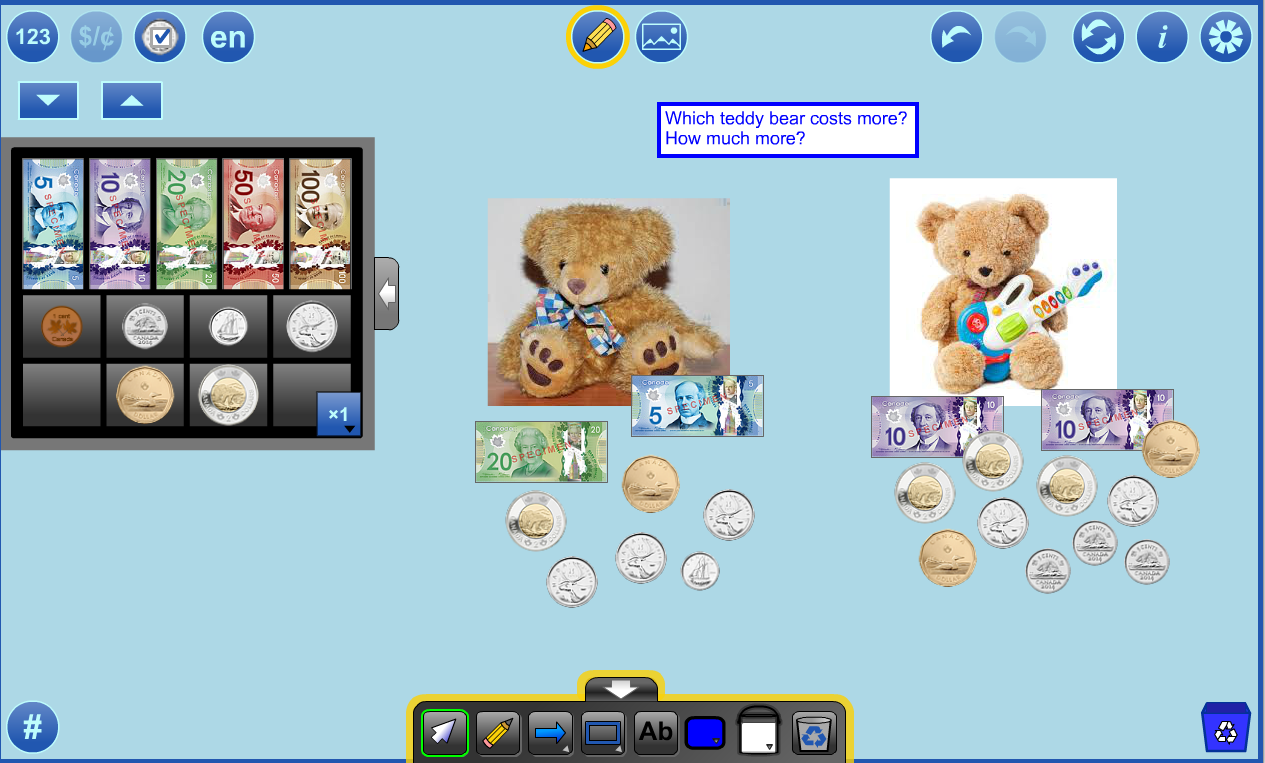
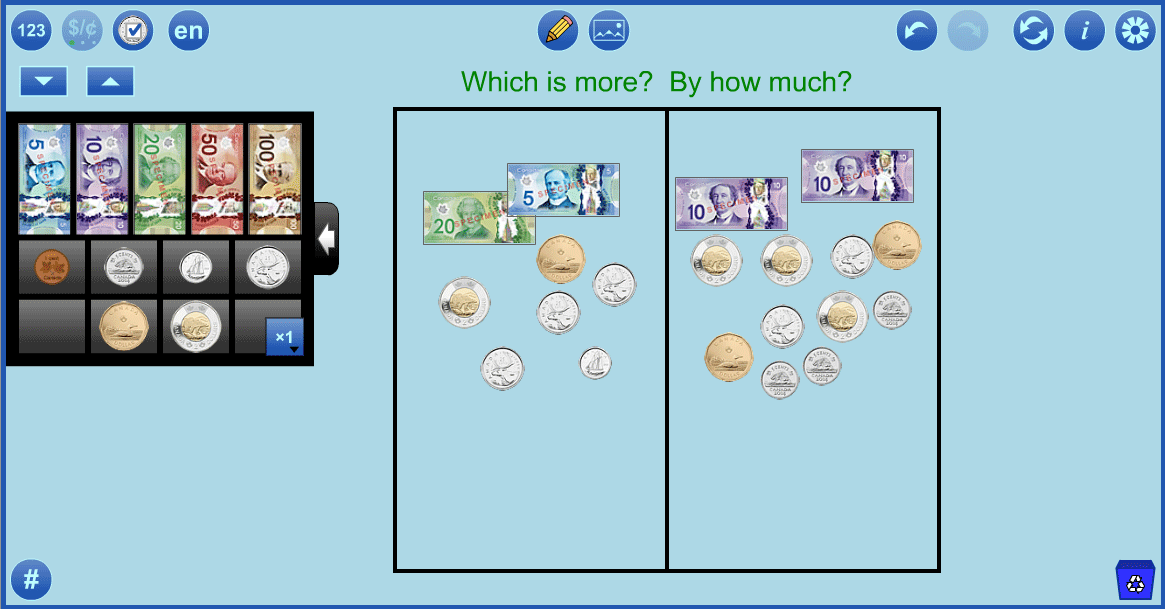
Compare Amounts
|
https://mathies.oame.on.ca/files/examples/MT_Ex2.xml |
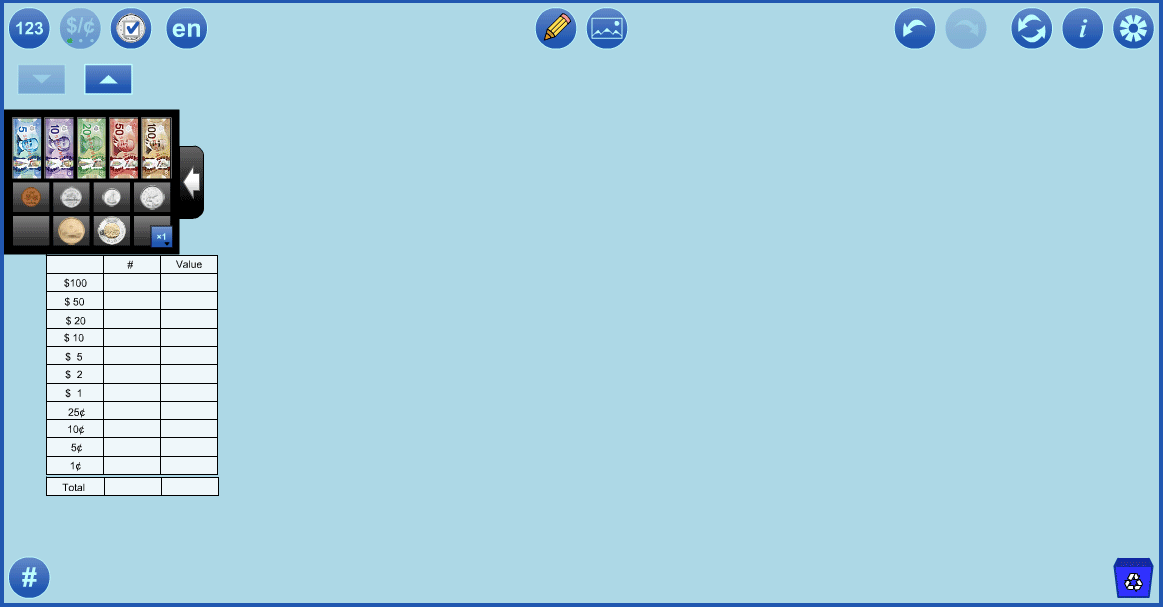
Cash Slip Template
|
https://mathies.oame.on.ca/files/examples/MT_CashSlipTemplate.xml |
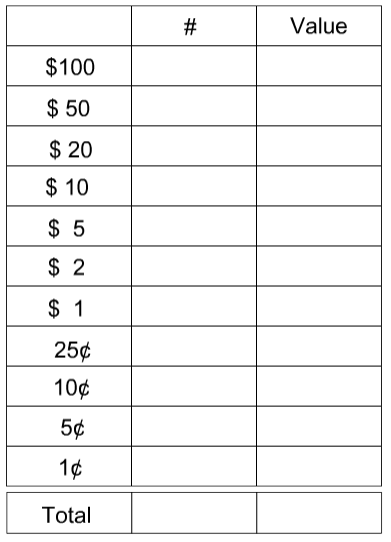
ImageRight click on the image and select Save image as... Use the image import button or the File import button to insert the image into the workspace. |
URLType or copy into Import WWW text box |
|
https://mathies.oame.on.ca/files/examples/MT_CashSlip.png |
| Button | Description |
 |
LabelsShow or hide the labels indicating the value of each currency. |
 |
Change UnitsSet the units of these labels to indicate dollars or cents. |
 |
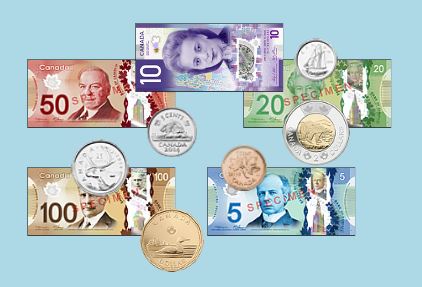
Choose CurrencyDetermine which currencies to place in the cash drawer. |
 
|
English / FrenchSwitch between English and French text and currency formatting. |
 |
Currency SizeDecrease / increase the currency size.On mobile devices, pinch to zoom is also available. On some desktop browsers, the mouse wheel can be used to change the currency size. It is helpful to begin by setting the desired size of currency. |
|
|
Annotation ToolHide / Show a wide variety of Annotation Tools which can be used to communicate thinking. |
|
|
Insert Image ButtonInsert images into the tool. More details. |
 |
Undo / RedoStep backward or forward through the actions taken with the tool.This feature is not only useful for backtracking when a misstep is made, it enables a student to demonstrate their work from the start to the finish. The student can press Undo until they are at the start of their solution and then press Redo repeatedly, explaining each step. Note: Undo / Redo is not available for annotation objects. |
 |
ResetDelete all work and return the tool to its starting state. |
 |
InformationShows a dialog with a link to this support page, a feedback form as well as copyright details and version number. |
 |
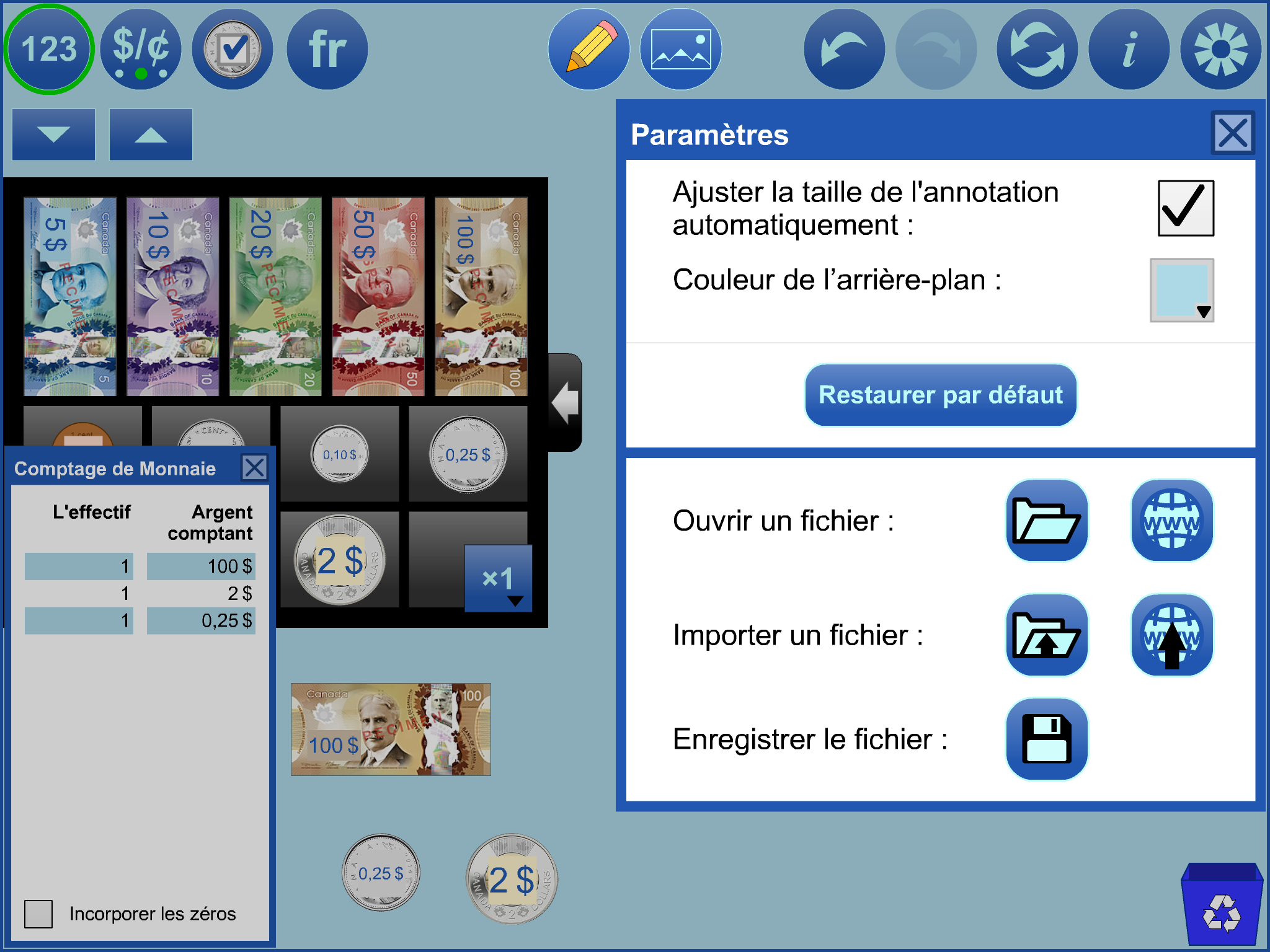
SettingsShows the settings dialog.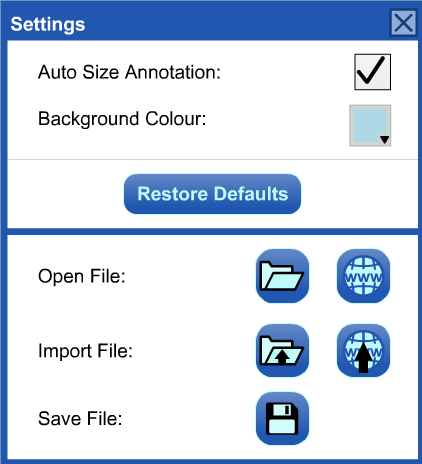 The Auto Size Annotation setting is selected by default. This means that if the currency size is changed, any annotation in the workspace will be scaled to match. Use the Restore Defaults button to restore all the settings, including labels and which currency is available in the cash drawer. Open, Import and Save files (see File Operations for more details) |
 |
Currency CountCheck to see how many of each type of currency are in the work space. |
 |
Number of Copies to DragSet the number of copies to drag from the cash drawer. |
 |
RecycleClick to remove selected items from the work space;click again to clear the entire work space. Alternatively, drag items to the recycle bin to remove them. |
 |
CopyMake a copy of the selected objects. |
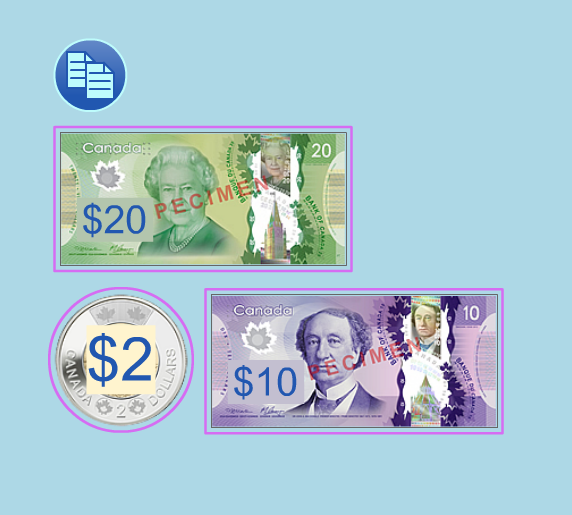 |
Multiple SelectTo selected currency draw a marquee rectangle around it.Hold down the SHIFT key when drawing a marquee rectangle to add to the previous selection. Click a coin or bill to add to or remove from the selection. Selected currency can be moved, copied, or recycled as a group. |
|
+ |
increases the currency size |
|
- |
decreases the currency size |
 Algebra Tiles
 Colour Tiles
 Fraction Strips
 Money
 Notepad
 Number Chart
 Pattern Blocks+
 Rekenrek
 Relational Rods+
 Set Tool